Step 1
Upload your product file
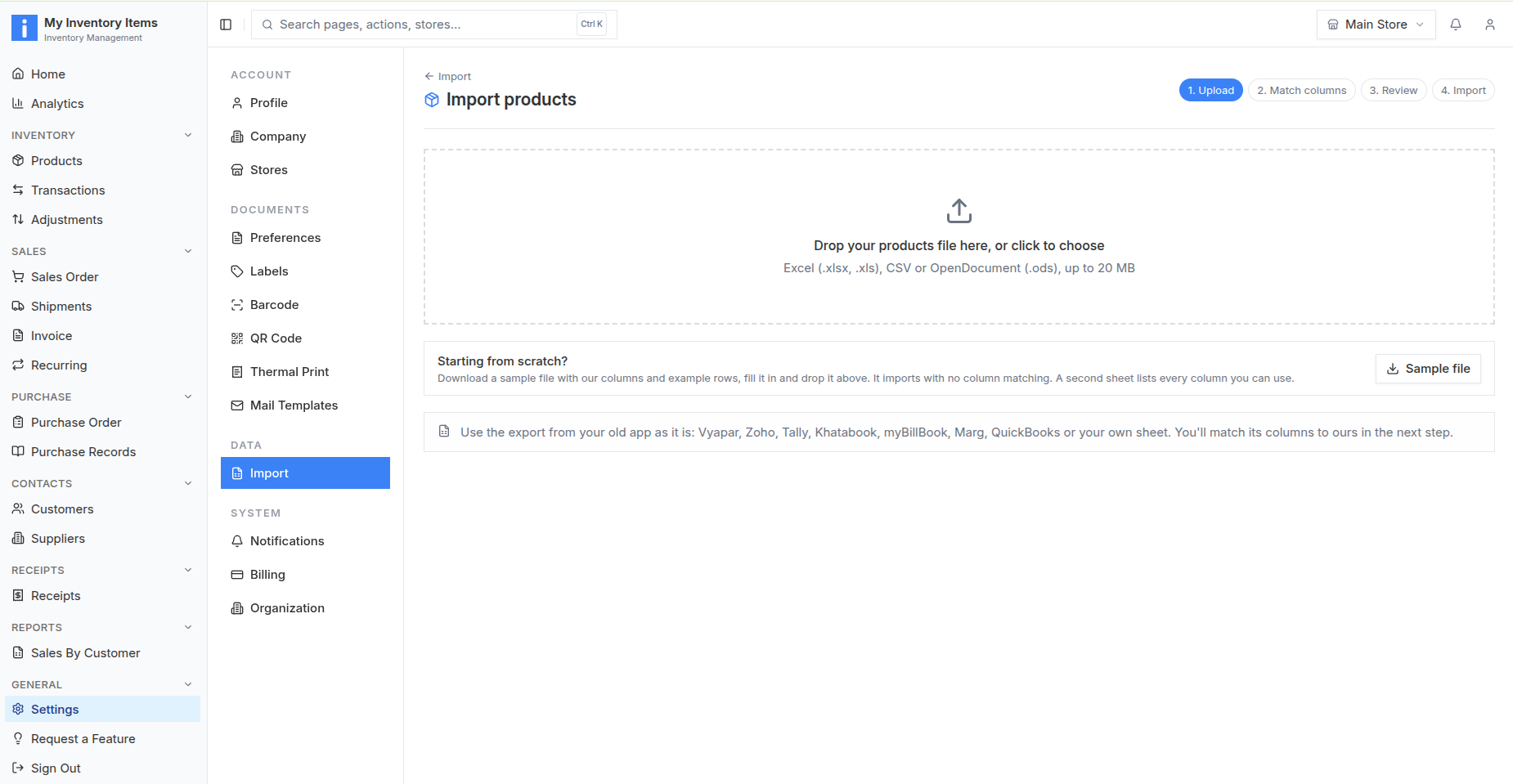
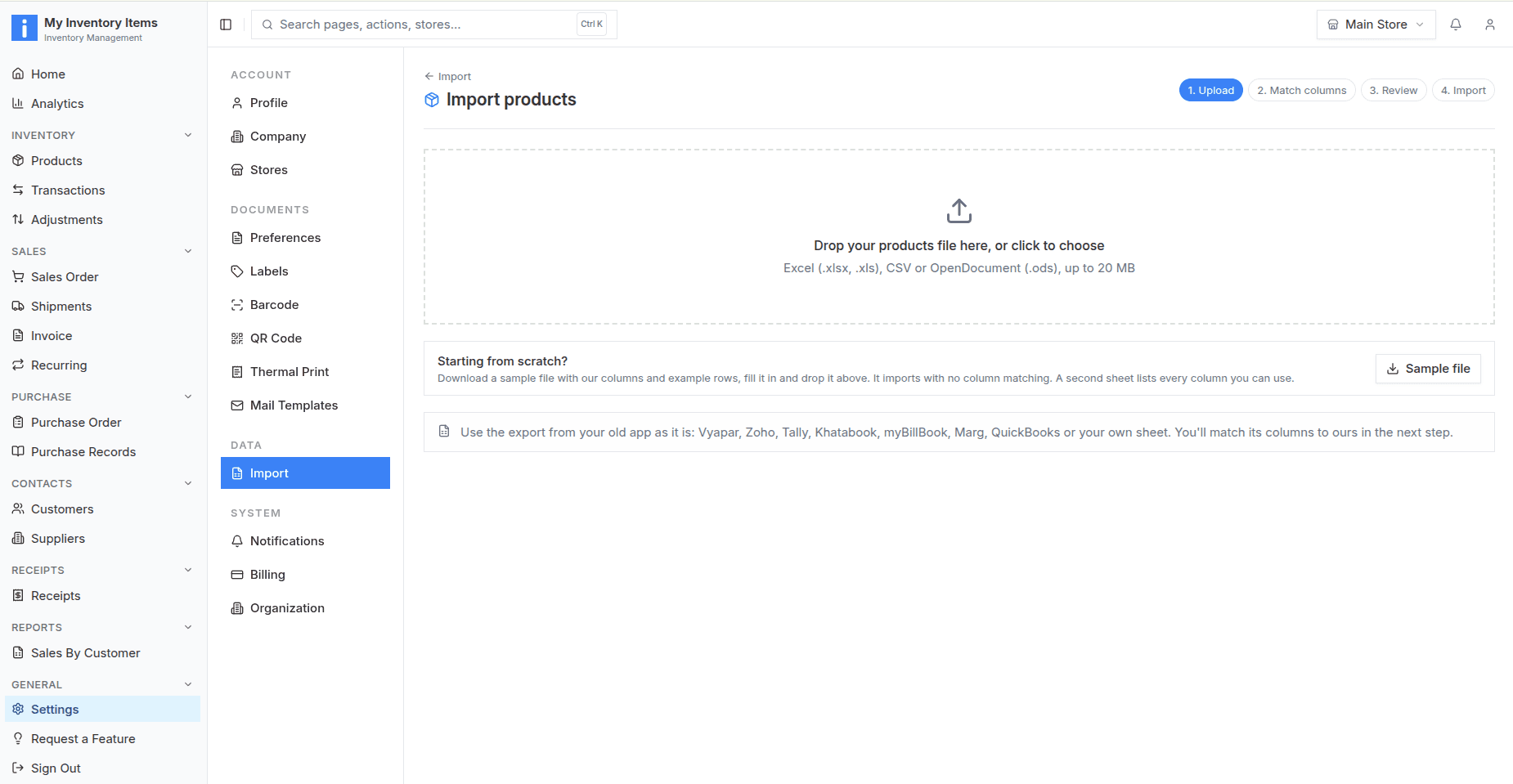
Open Settings → Import → Products. Upload Excel (.xlsx or .xls), CSV or OpenDocument (.ods), up to 20 MB.
 My Inventory Items
Product import & migration
Move your catalog from another inventory app or spreadsheet. Upload your file, match its columns, review the products and confirm the import before saving.
Excel, CSV and OpenDocument · Up to 20 MB · Preview before importing
Export an item-level spreadsheet from your old system, then open Settings → Import → Products in My Inventory Items. Upload the file, choose the sheet and header row, match its columns, review existing products and any problems, then confirm. This transfers the mapped product records from your file; it does not continuously synchronize the two apps.
Export availability depends on your source app, edition and permissions. Each guide explains what to prepare and what to check.
Vyapar product migration
Move your Vyapar product catalog into My Inventory Items using a spreadsheet: prepare the export, match columns, review duplicates and verify imported products.
Read migration guide →Zoho Inventory product migration
Move your Zoho Inventory product catalog into My Inventory Items using a spreadsheet: prepare the export, match columns, review duplicates and verify imported products.
Read migration guide →TallyPrime product migration
Move your TallyPrime product catalog into My Inventory Items using a spreadsheet: prepare the export, match columns, review duplicates and verify imported products.
Read migration guide →QuickBooks Online product migration
Move your QuickBooks Online product catalog into My Inventory Items using a spreadsheet: prepare the export, match columns, review duplicates and verify imported products.
Read migration guide →myBillBook product migration
Move your myBillBook product catalog into My Inventory Items using a spreadsheet: prepare the export, match columns, review duplicates and verify imported products.
Read migration guide →Marg ERP product migration
Move your Marg ERP product catalog into My Inventory Items using a spreadsheet: prepare the export, match columns, review duplicates and verify imported products.
Read migration guide →Khatabook product migration
Move your Khatabook product catalog into My Inventory Items using a spreadsheet: prepare the export, match columns, review duplicates and verify imported products.
Read migration guide →Spreadsheet product import
Prepare a product spreadsheet for My Inventory Items with names, SKUs, barcodes, units, prices and opening stock. Upload, map and review before saving.
Read migration guide →Product column mapping
Match spreadsheet columns to product fields in My Inventory Items. Check automatic matches, choose the header row and save a reusable mapping.
Read migration guide →Duplicate product handling
Understand product matching by SKU, barcode and name. Choose skip, update or add as new when reviewing a product import in My Inventory Items.
Read migration guide →Upload, match columns, review, then import. These screens show the product import workflow in My Inventory Items.
Step 1
Open Settings → Import → Products. Upload Excel (.xlsx or .xls), CSV or OpenDocument (.ods), up to 20 MB.
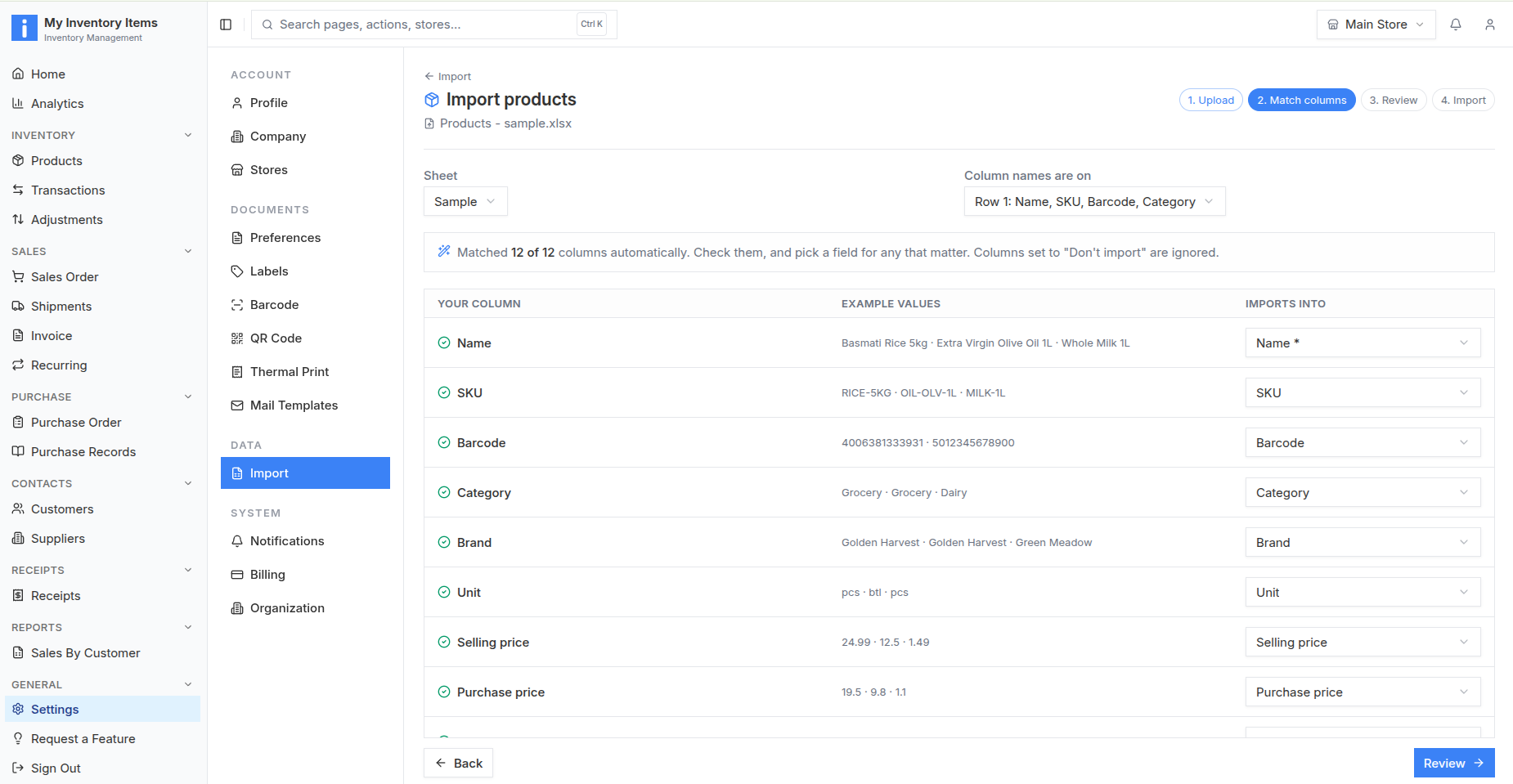
Step 2
Choose the sheet and header row. Inspect automatic matches and example values. Set unused columns to Don’t import.
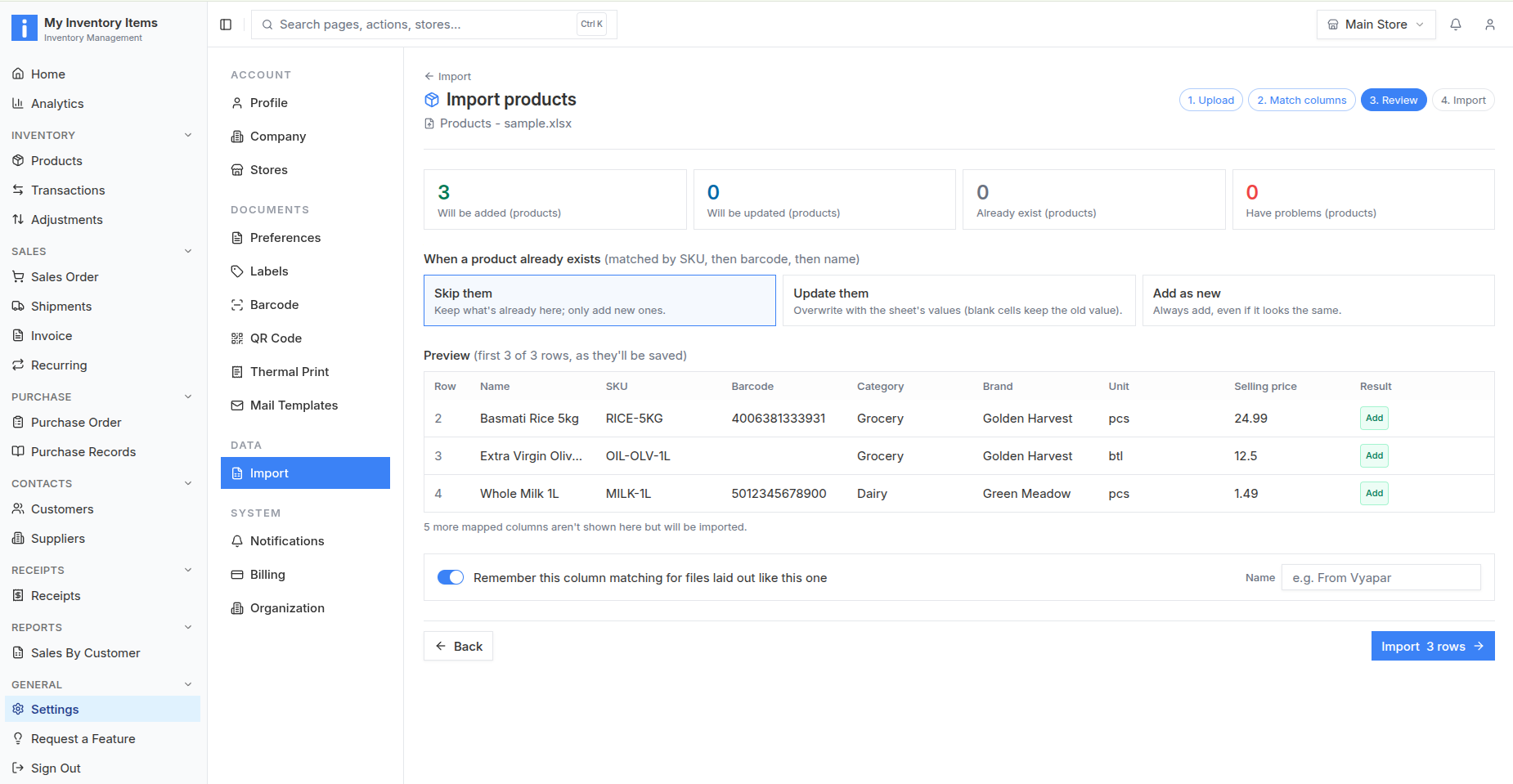
Step 3
Check the preview and problem counts. Choose Skip them, Update them or Add as new for existing products. Save a reusable mapping if needed.
Step 4
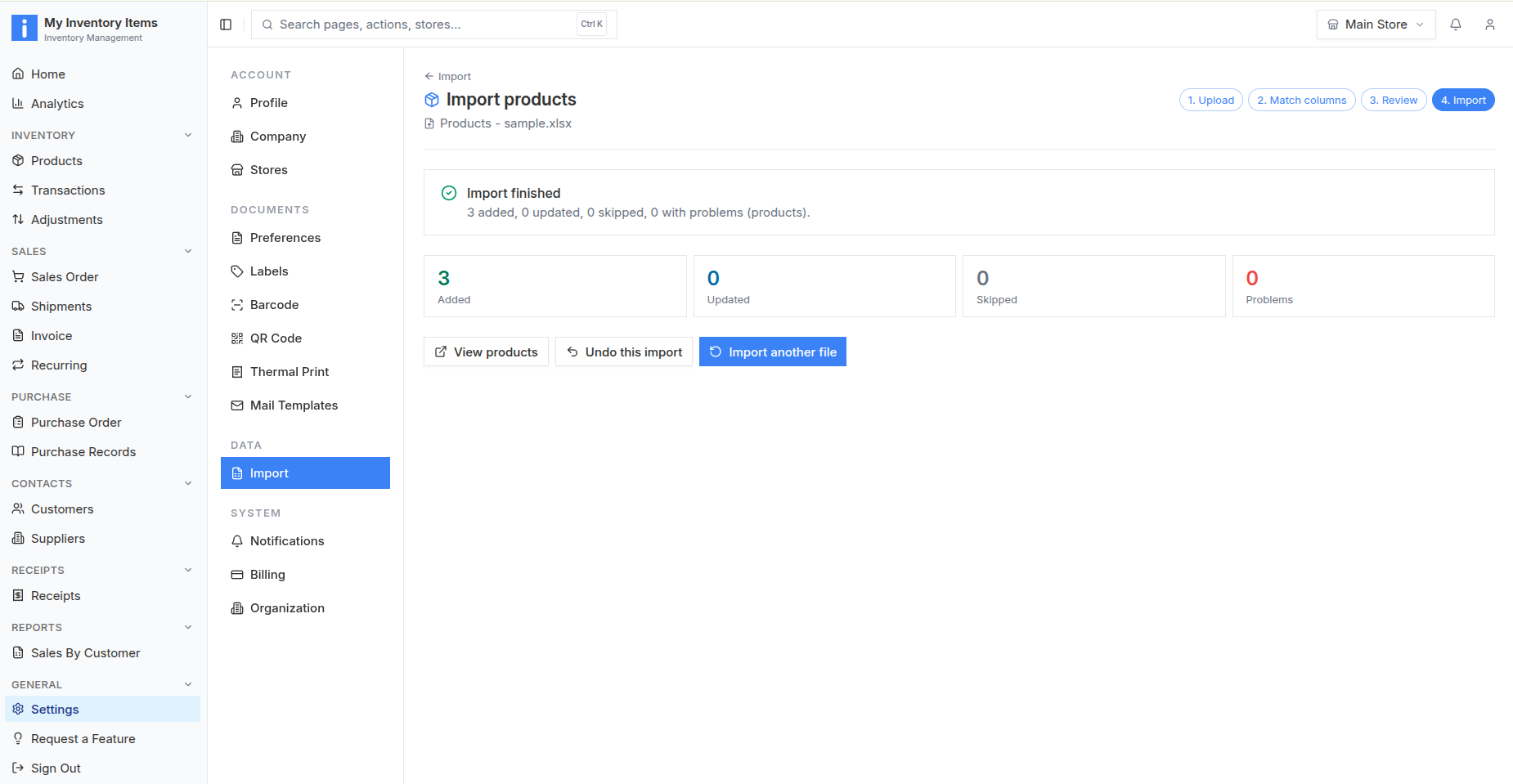
Confirm the import and keep the tab open while it runs. Review the completion counts, then open Products to check the saved records.
These are preparation checks, not a replacement for the current sample file and field list in your account.
| Field | Check |
|---|---|
| Name | Use a clear product name; the matching screen marks Name as required. |
| SKU and barcode | Preserve leading zeros and keep one stable identifier per separately stocked product. |
| Category, brand and unit | Use consistent names and confirm whether quantities mean pieces, cartons or another unit. |
| Selling price and purchase price | Match the right cost and sales columns; review sample values and decimal formatting. |
| Tax and opening stock | Use the current sample file for available fields. Check the stock date and location before importing quantities. |
The review screen matches existing products by SKU, then barcode, then name. Choose Skip them, Update them or Add as new. When updating, blank cells keep old values. Inspect the preview before continuing so an intended update does not become a duplicate.
Understand duplicate handling and undoYes, use an item-level Excel, CSV or OpenDocument spreadsheet from your old system, or prepare one using the in-app sample file. Match its columns, review products and duplicates, then confirm the import in My Inventory Items.
The product upload screen accepts Excel (.xlsx and .xls), CSV and OpenDocument (.ods) files up to 20 MB.
This workflow transfers a file you upload. It does not provide continuous synchronization or automatically sign in to the other software.
Products are matched by SKU, then barcode, then name. During review, choose whether to skip existing records, update them or add new records. Blank cells keep old values when updating.
Undo removes records added by an import when they have not been used since. Records used since are kept. Updates to existing records are not changed back.
Open the app and go to Settings → Import → Products. Download the current sample file or upload your existing export.
Open My Inventory ItemsSource product names identify migration starting points. These guides do not imply affiliation or endorsement by those providers.